

Training
The ECDIS FMD-3200 (with 19" LCD) and FMD-3300 (with 23.1" LCD) deliver great enhancement in terms of user interface as well as functionality.
The ECDIS employs intelligently arranged Graphic User Interface elements that deliver task-based operation scheme to give the operator direct access to necessary operational procedure.
Also, the new ECDIS utilises cutting edge chart-drawing engine that delivers instantaneous chart redraw with the seamless zooming and panning, hence making the ECDIS operation stress-free.
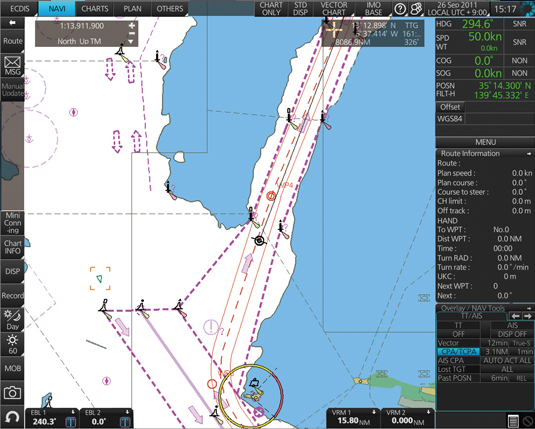
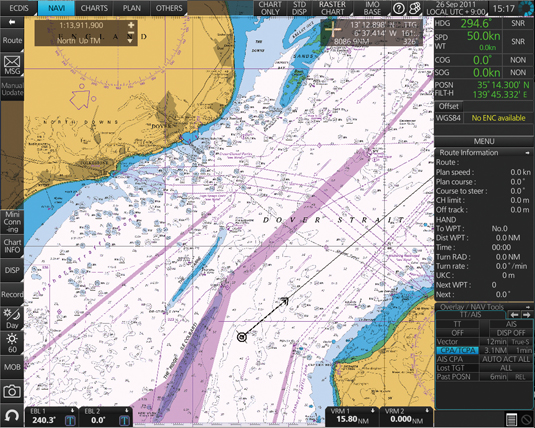
The ECDIS will also bring about streamlined chart management scheme providing easy chart management independent of the chart providers. The ECDIS is compatible with Jeppesen Dynamic Licensing and it supports the Admiralty Information Overlay (AIO).
Fully complying with the performance standard of ECDIS stipulated in IMO resolution MSC.232(82), the ECDIS is going to be a suitable candidate designated for new installation as well as retrofit to fulfill ECDIS mandatory carriage that is phasing in from July 2012 onward.
Multifunction display capability, featuring ECDIS,Conning Information Display, Radar/Chart Radar* and Alert Management System**
*a radar sensor needs to be integrated in the network.
** Radar and Alert Management System display capabilities are to be implemented as software update after product release. (option)
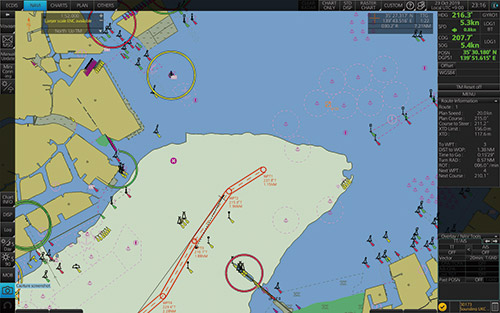
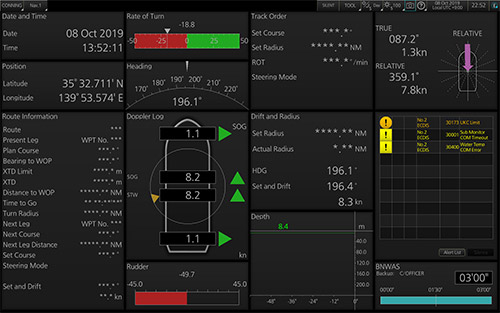
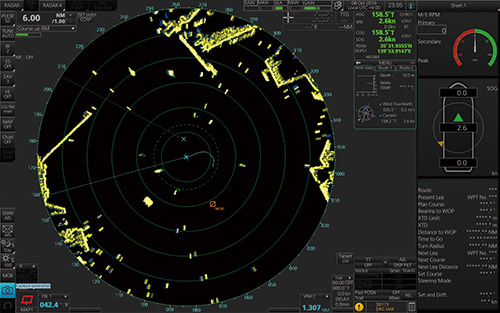
Instantaneous chart redraw delivered by FURUNO's advanced chart drawing engine, making redraw latency a thing of the past
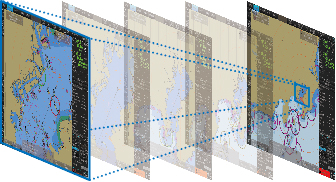
Intuitive new user interface offers fast, precise route planning, monitoring and navigation data management
Interface with FAR-2xx8 series Radar and FAR-2xx7 series Radar for Radar overlay, target track info, route and waypoint exchange via Ethernet
*Software update on FAR-21x7/FAR-28x7 series might be necessary depending on the program number.
Complies with the following IMO and IEC regulations:
- IMO A.694 (17)
- IMO MSC.191 (79)
- IMO MSC.232 (82)
- IMO MSC.302 (87)
- IEC 60945 Ed. 4
- IEC 61162-1 Ed. 5
- IEC 61162-2 Ed. 1
- IEC 61162-450 Ed. 2
- IEC 61174 Ed. 4
- IEC 62288 Ed. 3
- IEC 62923-1/-2
Cartography
-
IHO/S-57 Edition 3 vector chart (IHO S-63 data protection scheme)
- Admiralty Vector Chart Service by UKHO
- C-MAP CAES
- Jeppesen Primar ECDIS Service
- ARCS raster chart
-
C-MAP Professional+*
*C-MAP Professional+ is a private chart, hence not construed as replacement for paper chart. - Compatibility with Admiralty Information Overlay (AIO) for further navigation safety
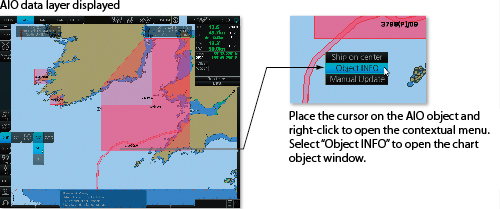
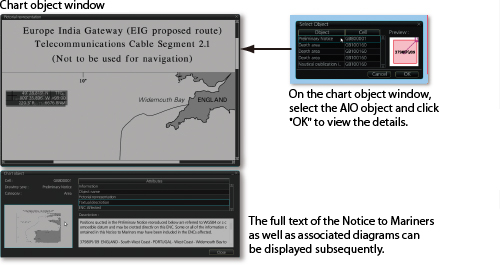
Additional AIO layer includes all Admiralty Temporary and Preliminary Notices to Mariners as well as additional ENC Preliminary Notices to Mariners, i.e., reported navigational hazards that have been incorporated into paper chart but have yet to be included in ENCs. The service is free of charge as part of Admiralty Vector Chart Service (AVCS) by UKHO.
Sensor Adapter
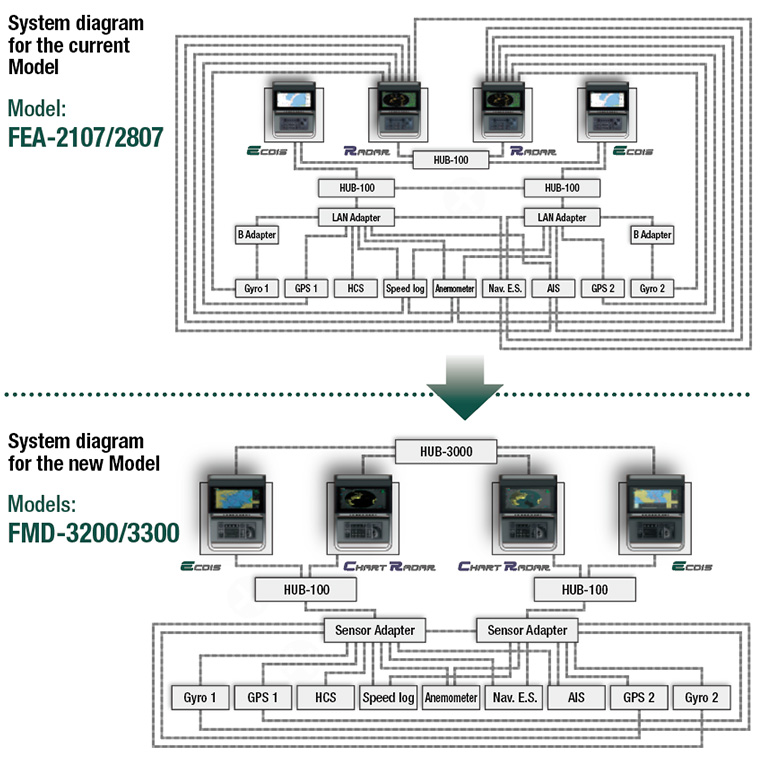
Ease of installation and maintenance thanks to simplified cabling in the sensor-to-ECDIS/Radar interface delivered by common sensor adapter
Sensor Adapter acts as central medium to gather all the sensor data and collectively feed it to all FMD-3200/3300 ECDIS and FCR-2xx9 Chart Radar in the system.Since sensor adapter can be extended to cover all the sensors within the system, individual cablings in the sensor-to-ECDIS/Radar interface can be greatly reduced.
Navigation sensors can be directly interfaced with the ECDIS processor's 8 serial I/O ports.Sensor adapters are required under the following conditions:
- the sensor data is to be shared amongst multiple networked ECDIS and Radar systems,
- the number of sensors interfaced is more than the number of the ports the processor has (8 serial I/O ports, 1 digital IN and 6 digital OUT), and/or
- the networked sensors include analog sensors.
In order to integrate onboard sensors into the navigation network, the sensor adapter may be interfaced with the switching hub HUB-100 from which distribution of the sensor data throughout the network is possible.Alternatively, multiple sensor adapters may be interfaced via Ethernet to integrate onboard sensors for use in the shipboard network.
User Interface
FURUNO's new user interface delivers straightforward, task-based operation
Control Units
The operator control of the FMD-3200 and FMD-3300 can be done with the ECDIS Control Unit RCU-024 or the Trackball Control Unit RCU-026. All functions of the ECDIS can be accessed by using the trackball, scrollwheel and left/right clicking.
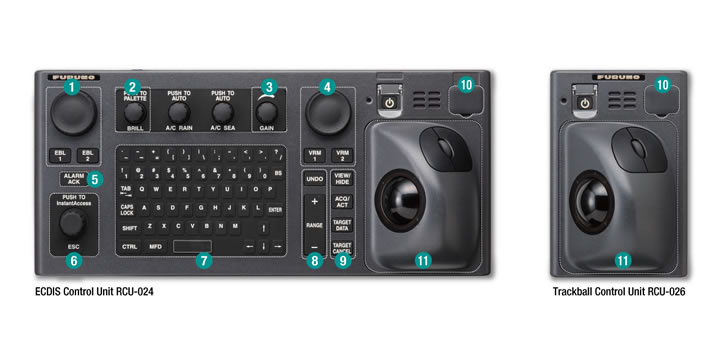
 Press “EBL 1” and “EBL 2” to activate/deactivate respective EBL; and rotate the encoder to adjust active EBL.
 Rotate to adjust brilliance level of the FURUNO monitor; and press to select display palette.
 Rotate to adjust radar gain on the radar overlay.
 Press “VRM 1” and “VRM 2” to activate/deactivate respective VRM; and rotate the rotary encoder to adjust active VRM.
 For acknowledgement of alerts generated.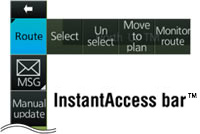
 Rotate to select items within the I.A.bar; and press to confirm the selection of the item.
 Full QWERTY keyboard for easy entery of route, event and waypoint names.
 Following functions are assigned for each key:
UNDO to undo the last operation RANGE to select chart scale -
 Following functions are assigned for each key:
VIEW/HIDE to show/hide the I.A. bar and route information window ACQ/ACT to activate selected active AIS target TARGET DATA to display the detailed target data for selected TT/AIS TARGET CANCEL to sleep the selected active AIS target  USB port for charts update, import/export, WP/routes, user setting.
-
 Trackball Module
Trackball module consists of four parts, each of which has the following functions:trackball to move the cursor and select an object left-click to perform/confirm the action related the selected object right-click to display contextual menu while a cursor is on the display area, and to cancel action done on the selected object scrollwheel to select menu items
|
|
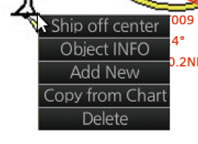 Contextual Menu
Task-based user interface realized by combination of Status bar and InstantAccess bar™ providing quick access to the needed tasks/functions
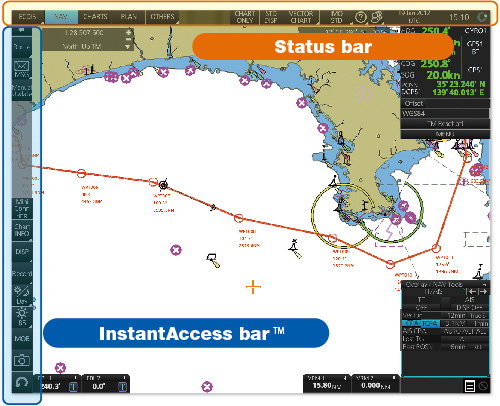
The user interface of the FMD-3200/FMD-3300 centers on carefully organized operational tools: Status bar and InstantAccess bar™. The Status bar at the top of the screen contains information about the operating status, i.e., MFD operating mode, the ECDIS operation modes, etc. InstantAccess bar™ at the left-hand side of the screen contains all the tasks (functions/actions) corresponding to the ECDIS operation mode currently selected. These operational tools deliver straightforward, task-based operation by which the operator can quickly perform navigational task without having to go deeper into an intricate menu tree.
Drop-down menu to facilitate streamlined operation
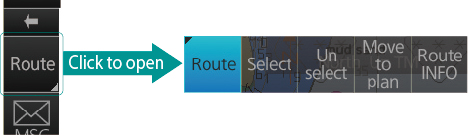
 on buttons in the Status bar and InstantAccess bar™ indicate that there are hidden options of actions/tasks to be performed in the sub-layer, which can be initiated by left-clicking the buttons. This way, the operator can quickly gain access to the related tasks.
Status bar

InstantAccess bar™

 When clicking on the InstantAccess bar™, the InstantAccess bar™ will retract to the edge of the screen. By clicking the hidden bar at the edge of the screen, the InstantAccess bar™ will come back in. The upper part of the InstantAccess bar™ contains the list of available tasks/functions specific to each of the ECDIS operation modes selected, hence providing quick access to the needed tasks/functions to be performed. While the menu items of the upper part of the InstantAccess bar™ change according to the mode selected, the lower part of the InstantAccess bar™ is static for all modes, except for "Mini Conning", which is only available in the "Monitor mode" and "Plan mode".

ECDIS operation modes
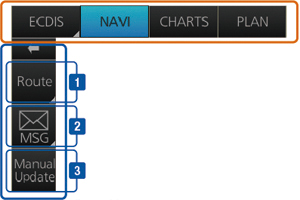
Monitor Mode
In the Monitor Mode, ship's behaviour can be monitored in relations to the planned route. Various voyage monitoring tools are incorporated into the InstantAccess bar™.
 |
|
 |
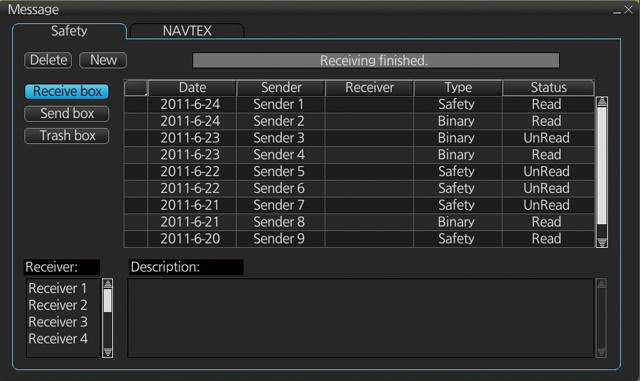 Click to open the AIS/NAVTEX message menu window from which the operators can handle AIS/NAVTEX messages, i.e., sending, viewing and deleting the messages Click to open the AIS/NAVTEX message menu window from which the operators can handle AIS/NAVTEX messages, i.e., sending, viewing and deleting the messages
|
 |
Click to open the manual update menu window by which the operators can update the electronic chart by inserting chart update symbols manually, according to the Notices to Mariners, NAVTEX warnings, etc. Manual update of the chart is required to ensure that the chart is kept up to date at all times. When the of cial chart update containing the changes by the manual update is made, the operator can delete the manual update symbols through the manual update menu window.
|
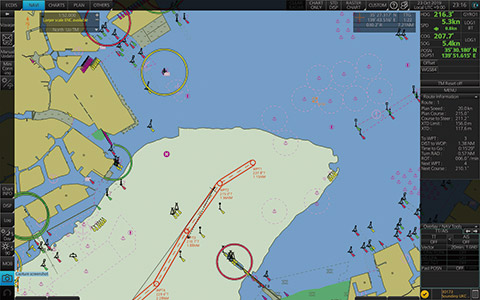
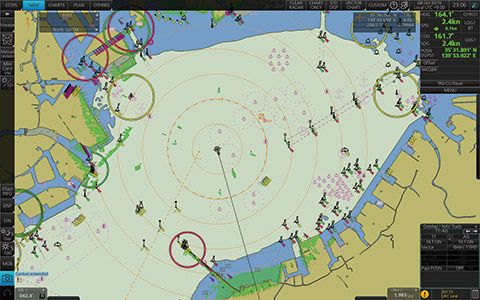
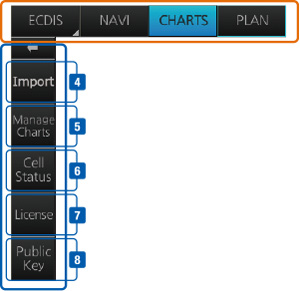
Chart Maintenance Mode
The Chart Maintenance Mode allows the operators to handle charts to be used in the system
 |
Click to start automatic installation of the chart data from the chart CD or DVD ROM. |
 |
Click to manage charts, i.e., grouping chart cells by purposes, deleting unnecessary chart cells, etc. |
 |
Click to view the chart catalog that shows general information about the charts installed in the system, i.e.,coverage, license status, availability and other status information. |
 |
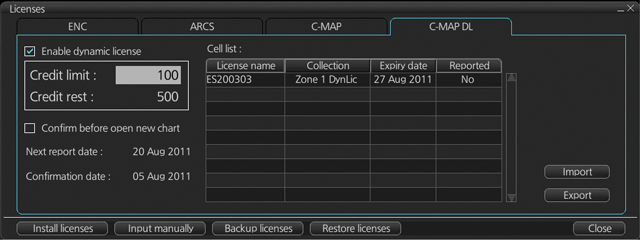 Click to open the chart license menu window where the operators can view the permit status of the chart installed. Also, the operators can install, backup, restore and export the chart licenses from the same menu window. Click to open the chart license menu window where the operators can view the permit status of the chart installed. Also, the operators can install, backup, restore and export the chart licenses from the same menu window. |
 |
Click to open Public Key management window.This allows user to change the Public Keys which are used to authenticate the source and integrity of the chart materials used in ECDIS. |
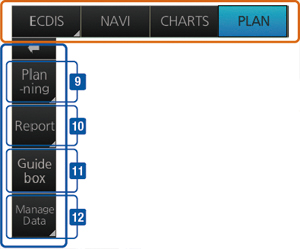
Plan Mode
In the Plan mode, the operators can generate and edit route plans as well as user charts. Also, various detailed reports, generated by ECDIS, on planned routes as well as user charts can be viewed. All these tasks can be accessed from the InstantAccess bar™.
 |
 |
Route Planning
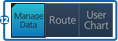
Once left-clicking on "Route", a route planning menu window will open. The operators can use the trackball to enter waypoints directly onto the chart. After entering a waypoint, the operators can edit name, steering mode, radius, channel limit and other parameters of the waypoints on the menu window. 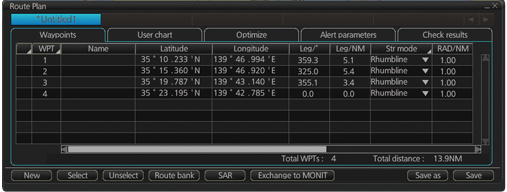
|
 |
Creating User Chart
When clicking on "User chart", user chart tools (a palette and a menu window) will be displayed by which operators can create a user chart. A user chart is a layer consisting of marks and lines that can be produced and overlaid onto the chart. It is intended for indicating safety-related areas and objects. 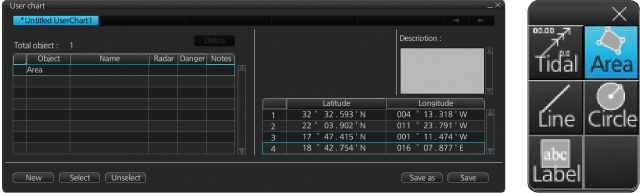
|
|
 |
Quick access to various reports
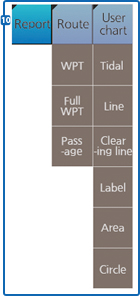
Route reports on waypoints and passage plan as well as user chart reports on tidals, lines, user-entered objects and user-de ned areas can be directly accessed for viewing from the InstantAccess bar™. |
|
 |
A guide box instantly tells the operators the range and bearing between the last waypoint and the cursor position as you drag the cursor.
|
|
 |
Click to open the data management windows for routes as well as user charts where selected routes and user charts can be deleted. | |
Software Version
| Software version | 01.xx | 03.xx*1 | 05.xx*2 |
|---|---|---|---|
| Testing standard | IEC 61174 Ed.3 | IEC 61174 Ed.4 | IEC 61174 Ed.4 |
| Electronic Navigational Chart (ENC) | S-57 Ed. 3.1, S-57 Ed. 3.1.1 and S-57 Maintenance Document (Cumulative) No. 8 |
||
| Raster Navigational Chart (RNC) | S-61 Ed. 1.0 | ||
| ECDIS Presentation Library | S-52 PresLib Ed. 3.4 | S-52 PresLib Ed. 4.0 | S-52 PresLib Ed. 4.0 |
| Chart Content and Display Aspects of ECDIS | S-52 Ed. 6.0 | S-52 Ed. 6.1 | S-52 Ed. 6.1 |
| ENC Data Protection | S-63 Ed. 1.1.1 | S-63 Ed. 1.2.0 | S-63 Ed. 1.2.0 |
| Compliance for IHO CDS | S-64 Ed. 2.0.0 | S-64 Ed. 3.0.1 | S-64 Ed. 3.0.1 |
| Bridge Alert Management (BAM) | MSC.302(87) | MSC.302(87) | IEC 62923-1/2 |
Please contact your local distributors if you wish to have further information about software versions.
*1 The software 03.xx versions are compliant with the IEC 61174 Ed.4 standard. Therefore, no updates to later versions are required.
*2 The software 05.xx versions are compliant with the IEC 61174 Ed.4 standard, and only required for vessels under the MED Implementing Regulation (EU) 2020/1170.
Brochure Download
Contact
